
What is the Full Form of SSD? A Student’s Guide to Lightning-Fast Storage
Have you ever noticed how a brand-new laptop or smartphone feels incredibly fast, but your older computer takes ten minutes just to open a web browser? You press the power button, go make a snack, come back, and it’s still loading.
If you are a student working on an assignment, trying to join an online class, or loading up a PC game after school, waiting on a slow computer is incredibly frustrating.
The secret to a fast, modern computer usually boils down to three little letters: SSD.
Whether you are prepping for a computer science exam, buying your first laptop for college, or just trying to understand how your tech works, this guide will break down the SSD full form, how it works, and why it is a total game-changer for students.
What is the SSD Full Form?
Let’s get right to the point.
SSD Full Form: Solid-State Drive (or Solid-State Disk)
An SSD (Solid-State Drive) is a type of mass storage device used in computers, laptops, tablets, and gaming consoles. It does the same basic job as an old-fashioned hard drive—it permanently saves your files, photos, operating system, and school projects even when you turn the power off—but it does it using completely different technology.
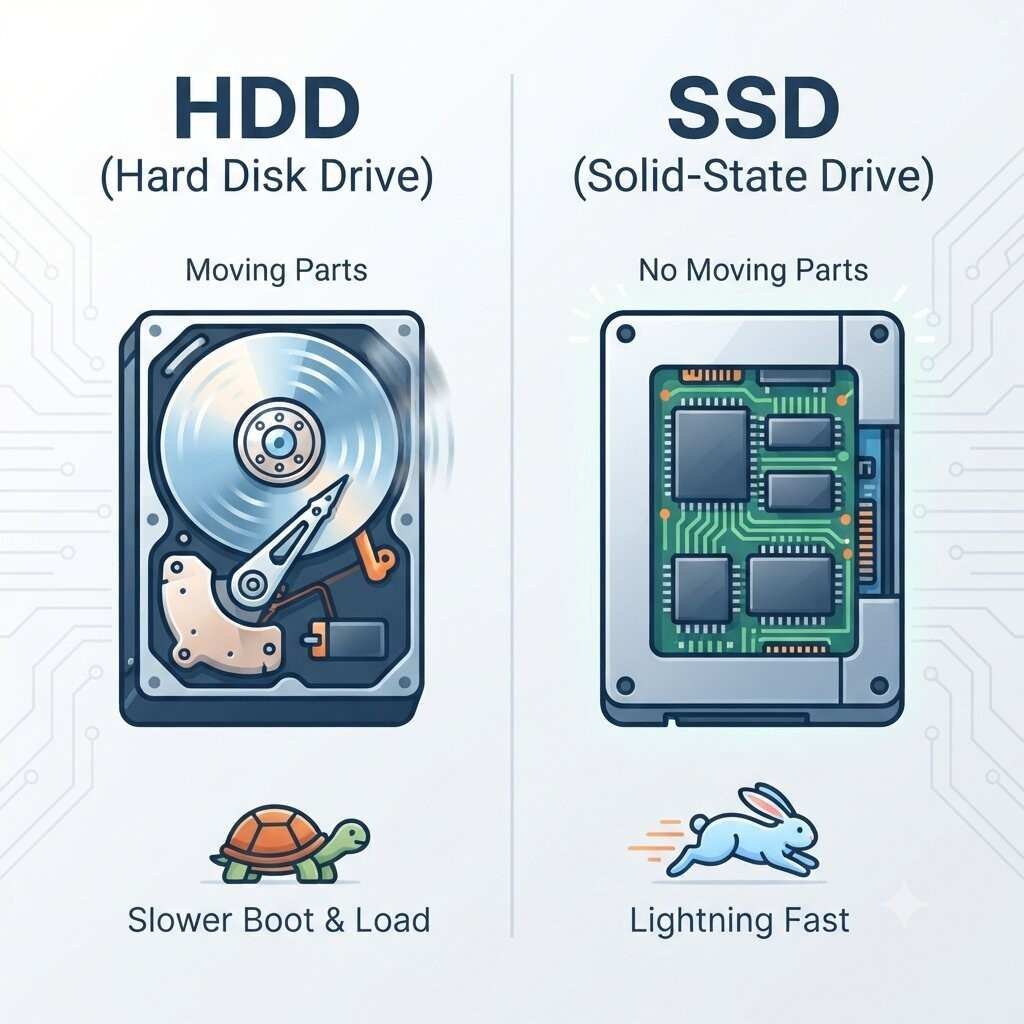
The phrase “Solid-State” is a fancy engineering term. It means the device is made entirely out of static chips and circuitry. It has zero moving parts. No spinning wheels, no ticking arms, and no motorized gears. It’s just pure, silent electronics.
The Ultimate Showdown: SSD vs. HDD
To understand why an SSD is so amazing, it helps to compare it to its older brother: the HDD, which stands for Hard Disk Drive.
How an HDD Works (The Old Way)
Inside an HDD, there is a shiny magnetic platter that spins around thousands of times per minute, sort of like a mini record player. A tiny mechanical arm hovers over the spinning platter to read and write data.
The Problem: Because the arm has to physically move across a spinning disk to find your files, it takes time. If you drop your laptop while that disk is spinning, the arm can crash into the platter and permanently destroy your data (like your 10-page history essay!).
How an SSD Works (The New Way)
An SSD has no moving parts. Instead, it uses a type of technology called Nand Flash Memory (which is a super-advanced version of the technology inside your everyday USB thumb drive).
The Benefit: Because everything is digital, the computer doesn’t have to wait for a physical disk to spin to the right spot. It simply sends an electrical signal to read or write data instantly. It is much faster, virtually silent, and highly resistant to physical drops and bumps.
Why Every Student Needs an SSD
If you are shopping for a new laptop or upgrading an old one for school, choosing an SSD over a traditional hard drive is one of the smartest decisions you can make. Here is why:
1. Insane Speed and Boot Times
Computers with hard drives can take minutes to load up. A computer with an SSD can boot up entirely in under 10 seconds. Apps like Microsoft Word, Google Chrome, and Zoom open almost instantly. You spend less time waiting and more time getting things done.
2. Durability for Heavy Backpacks
As a student, your laptop travels with you everywhere—from your bedroom desk to school buses, backpacks, and library tables. Traditional HDDs are fragile because of their moving parts. If you drop your backpack with an HDD inside, it can break easily. Because an SSD is “solid,” it can handle the rough-and-tumble lifestyle of a student without breaking a sweat.
3. Battery Life That Lasts All Day
Spinning a physical metallic disk inside an HDD takes a lot of battery power. Since SSDs use purely electrical currents, they consume far less energy. This means your laptop battery will last significantly longer during a long school day, saving you from hunting for an outlet in the middle of class.
4. Lightweight and Quiet
No student wants to carry a laptop that feels like a brick or sounds like a jet engine taking off during a quiet exam. SSDs are incredibly small and light, allowing tech companies to build super-thin, featherweight laptops. Plus, they run completely silently.
The Different Types of SSDs Explained Simply
If you start browsing shopping sites or tech forums, you will quickly realize that not all SSDs look the same. Here are the three main types you should know about:
1. 2.5-Inch SATA SSD
This is the classic SSD shape. It looks like a small, flat plastic brick. It was designed to look exactly like old laptop hard drives so that people could easily swap out their slow HDDs for a fast new SSD.
2. M.2 SSD
Instead of a bulky brick, an M.2 SSD looks like a tiny stick of chewing gum. It plugs directly into the computer’s motherboard. These are incredibly popular in modern, ultra-thin laptops because they take up almost no space.
3. NVMe SSD
NVMe isn’t a different shape, but rather a speed protocol used by modern M.2 drives. While older SSDs used slower “SATA” cables to transfer data, NVMe (Non-Volatile Memory Express) drives use the fastest data highways inside your computer. An NVMe SSD can be up to 20 to 30 times faster than an old hard drive!
Summary Table: Hard Drive (HDD) vs. Solid-State Drive (SSD)
| Feature | Hard Disk Drive (HDD) | Solid-State Drive (SSD) |
| Full Form | Hard Disk Drive | Solid-State Drive |
| Speed | Slow (Slower boot and load times) | Blazing Fast (Instant boots and loads) |
| Moving Parts? | Yes (Spinning platters and arms) | No (Purely electronic chips) |
| Durability | Fragile (Easy to damage if dropped) | Highly Durable (Shock-resistant) |
| Noise | Makes clicking or whirring noises | Completely silent |
| Price | Cheaper per gigabyte | Slightly more expensive, but worth it |
Are There Any Downsides to an SSD?
To be fair, there is one minor trade-off: cost per gigabyte.
Traditional hard drives are very cheap to manufacture in massive sizes. If you need 4 Terabytes (TB) of space just to archive old family movies that you rarely watch, an HDD is incredibly budget-friendly.
SSDs are slightly more expensive for the same amount of storage space. However, because prices have dropped dramatically over the last few years, almost all tech experts agree: the massive jump in speed and reliability is well worth the extra few dollars.
Conclusion: Give Your Studies a Speed Boost
Now you know the SSD full form and exactly why this technology has completely taken over the world of computing. By switching from an old mechanical hard drive to a Solid-State Drive, you remove the biggest bottleneck holding your computer back.
If you are planning to buy a new laptop for school, college, or gaming, don’t just look at the screen size or the color—make sure the storage specs explicitly say SSD or NVMe SSD. Your future self will thank you every time you hit the power button!